After logging in to BlendVision Console, you will find BlendVision logo and Project list on the left top side and the feature icon sidebar on the left lower side at the top page.
By clicking each icon on the Project list, you can achieve the following actions: create an encoding job, check your encoding status, ProfileSet list, and project setting, and even create an input list.
Then, the expanded detailed information will be shown on the right side.

The details are as follows:
- + Create an encoding

Follow the steps to select preference and create an encoding job.


- Encoding status

You can check the progress information of your encoding jobs here.

- ProfileSet list

You can check or create a customized Profile & ProfileSet here.

- Project settings

You can check and edit your project information here.

- Input list

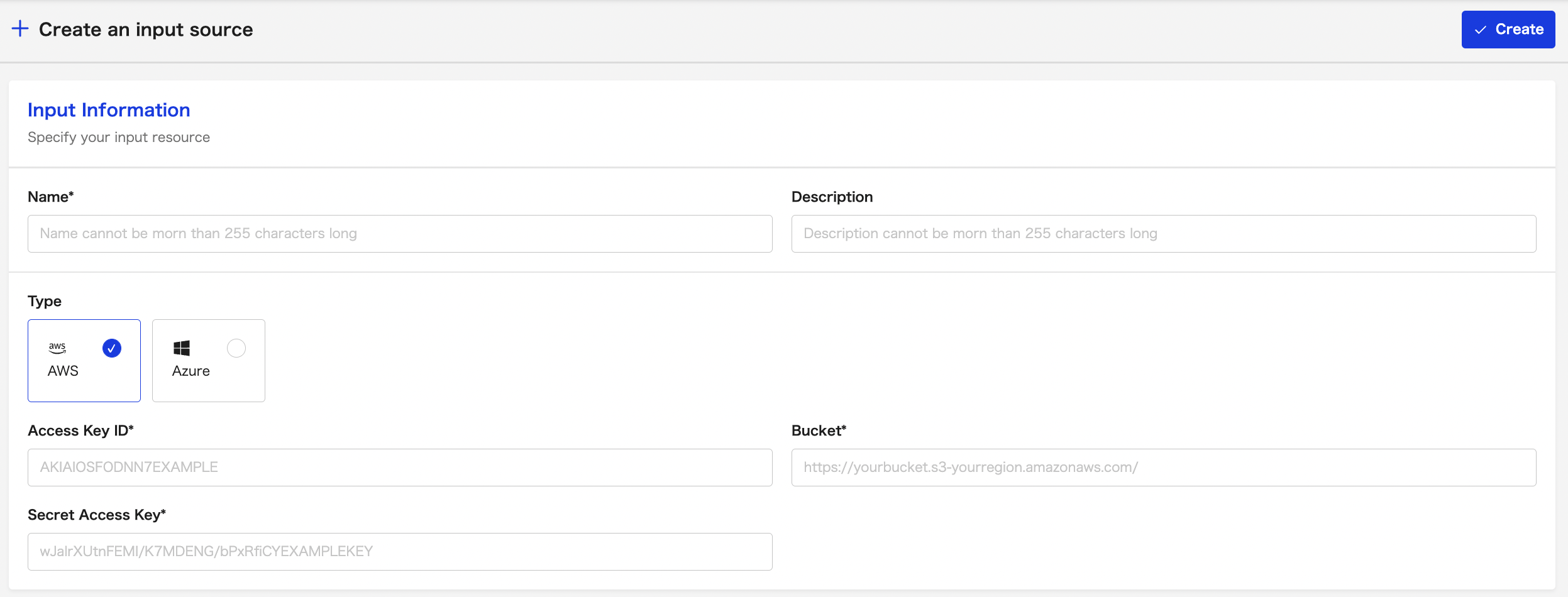
You can create an input source and check your input list here. You can build your own input storage if you want to upload video files via API.

Also, you can manage your encoding jobs by clicking icons on the icon sidebar on the lower left side.
The details of the icons are as follows:
- Dashboard

BlendVision provides a dashboard for you to check your usage. You can check Encoding or Streaming usage by project or by month.
- All projects

You can create a new project here. You can also have a quick check on the projects you created and create an encoding job on the project you select.
- All profiles

You can create a new profile here. You can also have a quick check on the profiles you created and edit profile details on the profile you select.
- Organization

You can check your organization information and add your preferred description here.
- User

You can check your user information and edit your user profile here. You can also choose to receive product updates via email or not.
- Contact Support

You can contact our service team if you need further assistance.